Quick answer
- What this covers: How to use Paperclip AI step by step.
- Who it’s for: People evaluating paperclip ai.
- What it costs: $200/mo.
Most software guides assume you care about features. This one assumes you care about results.
You are probably here because you spend too much time on operational work that does not require your expertise. Email triage. Lead follow-up. CRM updates. Meeting scheduling. Invoice reminders. Reporting. Each task individually takes 10-20 minutes. Together they eat half your day. McKinsey estimates that knowledge workers spend 60% of their time on "work about work," meaning coordination, communication, and administrative tasks rather than the skilled work they were hired to do.
Paperclip AI is an AI agent that handles this work for you. Not a chatbot. Not a Zapier flow. An autonomous employee that operates continuously, 24/7, making decisions within the boundaries you set.
This guide walks through how to use Paperclip AI from first login to a running agent, written specifically for business owners who are not developers. No jargon. No assumptions about technical knowledge. Just the steps that matter and why they work.
What you will have by the end of this guide:- A Paperclip AI account connected to your existing business tools
- Three core workflows running and producing results
- A dashboard you can check in under 5 minutes each morning
- A clear plan for what to add next
The setup takes about 30 minutes.
Before You Start: Three Questions to Answer
The business owners who get results from Paperclip AI quickly are the ones who are clear on these three things before logging in. Take 5 minutes to answer them.
Question 1: What are the three most time-consuming repetitive tasks in your current week?Write them down. Not your most important tasks. The most time-consuming tasks that require no real judgment. "Checking email and responding to routine inquiries." "Updating the CRM after sales calls." "Sending follow-ups to proposals I submitted last week." These are your first three workflows.
Question 2: Which business tools do you use every day?List the five to eight tools you log into regularly: email (Gmail or Outlook), CRM (HubSpot, Salesforce, Pipedrive), calendar (Google Calendar, Outlook), project management (Asana, ClickUp, Notion), storage (Google Drive, Dropbox), communication (Slack, Teams). These are the tools you will connect in setup.
Question 3: What decisions do you want to make yourself, and which ones are you comfortable delegating?You do not have to delegate everything on day one. The most common starting boundaries: "The agent can send emails to existing clients but should draft emails to new prospects for my review." "The agent can update the CRM but should flag any changes to deal stage before making them." These boundaries become your guardrails. You will set them in plain language.
Answers in hand, you are ready.
Step 1: Create Your Account
Go to Paperclip AI's website and sign up. Plans start at $200/month. You will need a work email address (not Gmail.com, your company domain).
The onboarding flow asks three questions: your business type, your team size, and which tools you want to connect first. These answers pre-configure the most relevant workflow suggestions. If you answer honestly, the platform will show you relevant starting templates rather than a generic library of 200 options.
Choosing a plan: If you are a solo operator or running a team under five people, the entry plan covers the core skills. If you are managing a team of 5-20 and want to run multiple concurrent agents or high-volume workflows, look at the mid-tier plan. For pricing specifics, see Paperclip AI pricing.Paperclip AI offers a trial period. Use it. The trial limits some functionality but gives you enough to verify the platform integrates with your tools correctly before you commit to a monthly plan.
Step 2: Connect Your Tools
This is the most important step and the most commonly underestimated one. Paperclip AI is only as useful as the tools you connect it to. A disconnected agent cannot do its job.
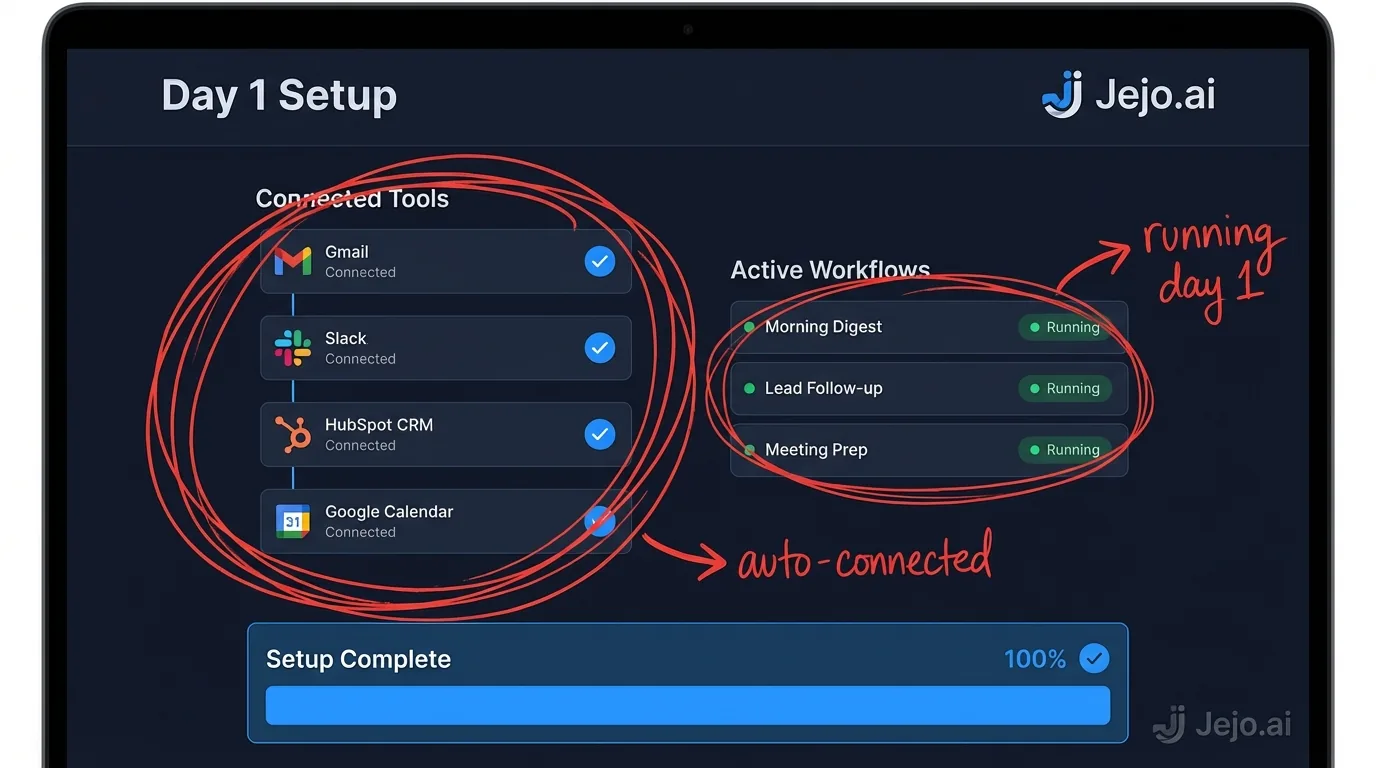
Navigate to Settings > Integrations. You will see the integration library. Connect your tools in this order:
Connect first:- Email (Gmail or Outlook). This is the highest-value integration for most businesses. Everything flows through email. Connect it first.
- Calendar (Google Calendar or Outlook Calendar). Scheduling, reminders, and meeting management require calendar access.
- CRM (HubSpot, Salesforce, Pipedrive, or your preferred CRM). This is where your contact and pipeline data lives.
- Project management tool (Asana, ClickUp, Notion, Trello). Task creation and assignment flows through here.
- Storage (Google Drive or Dropbox). Document routing and filing.
- Communication (Slack or Teams). Alerts and internal notifications.
- Billing/invoicing (QuickBooks, FreshBooks, Stripe, Wave). Invoice reminders and payment tracking.
- Meeting transcription (Otter.ai, Fireflies). Meeting notes and action item extraction.
- Any other tools specific to your industry or workflow.
Each connection is an OAuth authorization. You click connect, authorize access in the tool's login screen, and Paperclip gets read/write access. The whole process takes 2-3 minutes per tool.
Common connection issue: If you use Google Workspace with a company-managed account, your IT administrator may need to whitelist Paperclip AI before OAuth connections work. If connections fail with a permissions error, this is likely why. Resolve it before continuing.When your tools are connected, the integration panel shows a green status indicator for each one. Do not proceed to Step 3 until everything shows green.
| Tool Category | What It Enables | Priority |
|---|---|---|
| Email (Gmail/Outlook) | Triage, follow-ups, client communication | Critical |
| Calendar | Scheduling, meeting management, reminders | Critical |
| CRM | Contact records, pipeline updates, deal tracking | Critical |
| Project management | Task creation, assignments, status updates | High |
| Storage (Drive/Dropbox) | Document routing, filing, retrieval | Medium |
| Communication (Slack/Teams) | Alerts, notifications, team routing | Medium |
| Billing/invoicing | Invoice tracking, payment reminders | High if billing manually |
| Meeting transcription | Notes, action items, call summaries | Optional but high-value |
Step 3: Set Up Your First Three Workflows
Do not try to automate everything on day one. You will spend more time correcting edge cases than you save. Start with three workflows. Add more after you trust the outputs.
Here is how to set up each of the three most valuable starting workflows for a service business.
Workflow 1: Email Triage
Click New Workflow > Communication > Email Triage.
In the description field, write in plain language what you want the agent to do with your email. Here is an example starting description you can adapt:
"Read all incoming emails. Flag as urgent (requiring my review before any action) any email from existing clients that contains the words 'problem', 'issue', 'cancel', 'disappointed', or 'refund'. Auto-reply to any email asking for pricing with [paste your standard pricing response text here]. Auto-reply to any email requesting a meeting with a link to my calendar [paste your scheduling link here]. Send me a daily summary of all emails received and what was done with each one, at 7am."
That description covers 80% of what most service business inboxes deal with daily. You can refine it later when you see the outputs.
Set one guardrail: "Draft replies to all other emails for my review before sending. Do not send unsolicited emails to any new contacts without my approval."
Save the workflow. It activates immediately. The next email you receive will be processed against these rules.Workflow 2: Lead Follow-Up
Click New Workflow > Sales > Lead Follow-Up.
This workflow triggers whenever a new lead enters your CRM. The description:
"When a new contact is added to [Your CRM] with source tagged as 'inbound lead', send a follow-up email within 30 minutes of the contact being created. Use the following template as a starting point but personalize it with the lead's name and company from the CRM record: [paste your best-performing follow-up email here]. If the lead does not reply within 3 days, send a second follow-up. If they do not reply to the second follow-up within 4 days, send a final follow-up and mark them as 'cold' in the CRM."
Set a guardrail: "Do not continue the sequence if any reply is received. Flag any reply for my attention within 30 minutes."
This workflow alone is responsible for most of the commercial lift Paperclip AI delivers in month one. Research published in Harvard Business Review found that contacting leads within an hour makes firms nearly 7x more likely to have meaningful conversations with decision-makers, and leads contacted within 5 minutes convert at dramatically higher rates than those that wait hours.
Workflow 3: CRM Updates After Emails
Click New Workflow > Sales > CRM Updates.
Description: "After every email I send or receive from a contact who exists in [Your CRM], create a touchpoint note in that contact's record with a summary of the email conversation and the date. If an email contains language suggesting a deal is moving forward ('yes, let's proceed', 'sounds good', 'we want to go ahead'), update the deal stage in the CRM to 'Verbal Commitment'. If an email contains cancellation language ('cancel', 'not moving forward', 'decided to go another direction'), flag for my review before making any CRM changes."
Set a guardrail: "Always flag deal stage changes for my review on deals over $10,000 in value."
With these three workflows running, your email is managed, leads are followed up automatically, and your CRM stays current without manual data entry. That is typically 6-10 hours per week recovered from day one.
Step 4: Configure Your Daily Summary
The daily summary is how you maintain awareness of what your agent is doing without micromanaging it.
Go to Settings > Notifications > Daily Summary. Configure:
- Delivery time: 7am (or whenever you start your workday)
- Delivery method: Email (and Slack if you use it)
- Include: tasks completed, pending approvals, new leads received, CRM changes made, any errors or workflow failures
The summary should take under 5 minutes to read. If it is longer than that, the agent is giving you too much detail. Go back to the notification settings and filter to the highest-signal items only.
Also configure approval alerts: "Notify me immediately when any action requires my approval." These come through as separate notifications so they do not wait until the next morning summary.
Step 5: Review and Refine the First Week
Your agent is running. Resist the urge to tweak constantly during week one. The agent is learning patterns and you need to see what it does before you can improve it.
At the end of day one, check the Action Log. Review what the agent did. Look for:
- Actions that were correct and require no change. These confirm the workflow description is working.
- Actions that were almost right but needed minor adjustment. These are refinements to make to the workflow description.
- Actions that were clearly wrong. These indicate ambiguous workflow descriptions that need clarification.
Fix the clear errors. Leave the rest for day three review.
At the end of day three, check the Pending Approvals log. How many actions was the agent unsure about? High approval request rates (more than 20-30% of actions) mean the workflow descriptions are too vague. The agent is encountering too many cases it cannot resolve. Sharpen the language.
At the end of week one, the approval request rate should be falling. The agent has learned your patterns. By week three, most business owners find the approval rate drops below 10% for stable workflows.
What to Add in Month Two
Month one confirms the value and establishes your trust in the outputs. Month two is where you expand to the more complex workflows that compound the results.
Invoice reminders. Connect your billing tool and set up the invoice reminder sequence. Day 7 before due: friendly reminder. Due date: payment notice. Day 7 overdue: firm follow-up. Day 14 overdue: escalation with specific next steps. This workflow runs silently and reduces average days outstanding by 8-15 days for most service businesses. Meeting preparation summaries. If you connect a meeting transcription tool, set up a workflow that reads the full communication history with a contact before each scheduled meeting and generates a preparation brief: what you have discussed, what was promised, outstanding items, and the agenda for today's meeting. Delivered 30 minutes before each call. Weekly pipeline report. A report delivered every Monday showing your active pipeline, deals by stage, proposals outstanding, and the three highest-priority deals to focus on this week. This replaces the manual review most business owners do on Monday mornings (or skip because they do not have time). Client onboarding sequence. When a new client is added to your CRM with a "client" tag (or whatever trigger you use to mark a won deal), the agent kicks off a structured onboarding communication sequence: welcome email, questionnaire request, kickoff meeting scheduling, onboarding checklist task creation in your PM tool, and a reminder to send the contract if it has not been signed yet.The 90-Day View: What Results to Expect
Business owners who follow this setup approach and operate the agent consistently see real improvement. Here is a realistic 90-day timeline:
Week 1-2: Setup complete. 6-10 hours per week recovered. Email management reduced to a 10-minute daily review. CRM stays current without manual entry. Lead follow-up running consistently. Month 1: Approval rates declining. Agent handling 85-90% of actions autonomously. Invoice collection noticeably faster. Proposal follow-up running without manual tracking. Month 2: Expanded workflows deployed. 15-20 hours per week recovered. Agent has learned enough patterns that most outputs require no editing. Compounding improvement on email response rates and lead conversion visible in the data. Month 3: Agent operating with minimal oversight. Weekly pipeline report replacing manual reviews. Meeting preparation summaries changing how calls go. Business owner spending time on strategic work rather than operational administration.The math at month 3: 20 hours/week recovered, at a conservative $75/hr in owner time value, equals $1,500/week or $6,000/month in recovered capacity. Against a $200-$750/month subscription cost, the ROI is 8-30x depending on your plan tier. The SBA's small business owner earnings data supports the $75-$150/hr effective rate for small business owners as a reasonable baseline for opportunity cost calculations.
This is not hypothetical. These numbers are consistent across service businesses that activate Paperclip AI properly and give the agent 60-90 days to learn their patterns. For a comparison of these returns against hiring, see the true cost of hiring.
Common Mistakes New Users Make
Starting with too many workflows. Ten workflows on day one produces 10 workflows that each need calibration. You spend more time in the Action Log correcting outputs than you save. Start with three. Add more only after the first three are stable. Setting guardrails that are too broad. "Ask me before sending any email" defeats the purpose. Set guardrails on the actions where mistakes are costly: sending to VIP clients, changing deal stages on large opportunities, sending emails involving money. For routine communications, let the agent run. Not reviewing the Action Log in week one. The Action Log is where you learn how the agent interprets your descriptions. Skip it in week one and you miss the calibration window. Spend 15 minutes on it each day for the first five days. Expecting perfection from day one. The agent needs a few weeks of corrections before it runs cleanly. Business owners who bail after three days because the outputs needed editing are making the same mistake as firing a new hire after a week because they were not yet fully trained. The learning curve is short, but it exists. Not setting up the daily summary. Without the summary, you have no awareness of what the agent is doing unless you log into the dashboard. The summary takes 5 minutes and gives you everything you need. Set it up on day one.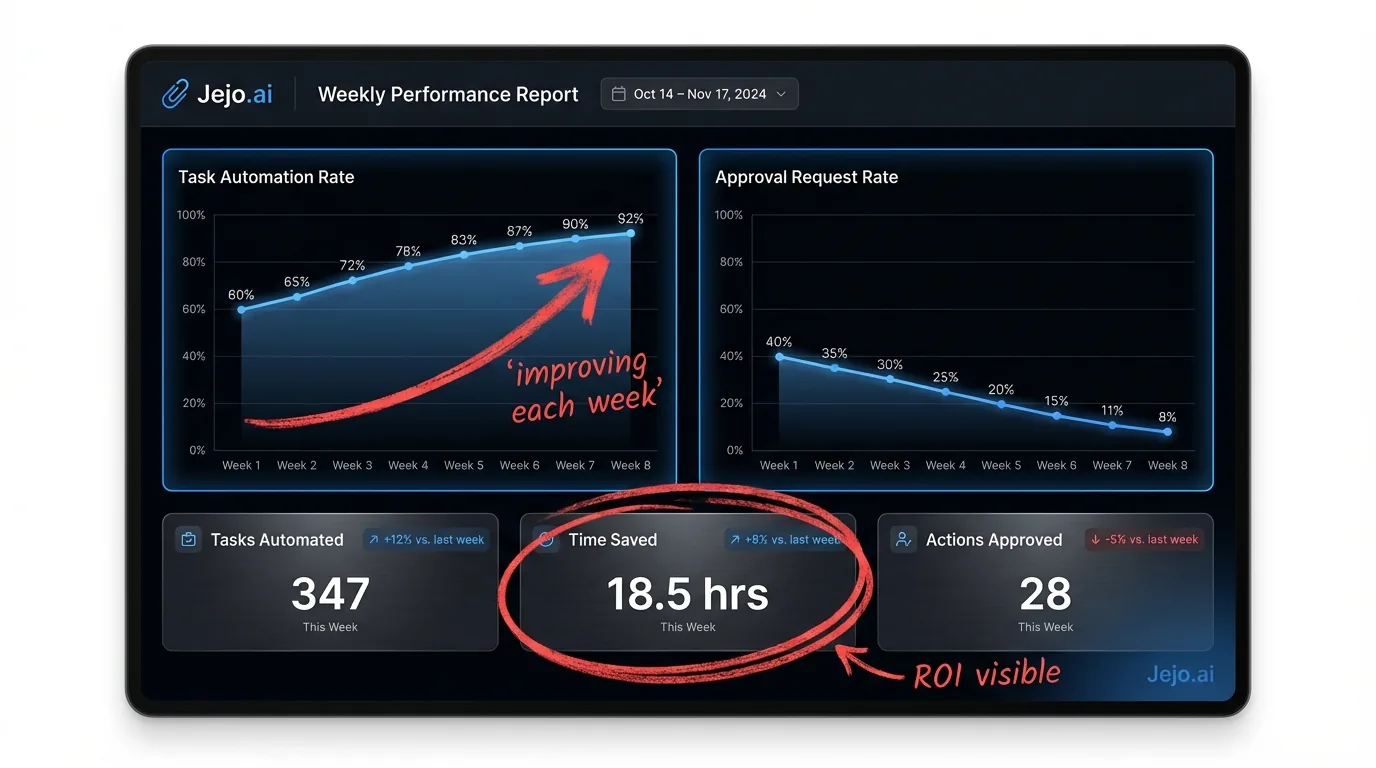
FAQ
How long does setup actually take?
Account creation and tool connection: 15-20 minutes. Setting up the first three workflows: 10-15 minutes. Total first session: 30-35 minutes. The second session (refining based on day one activity) takes about 20 minutes. From there, the agent runs with under 5 minutes of daily oversight.
Do I need any technical skills to use Paperclip AI?
No. If you can write a job description for a new employee, you can configure a Paperclip AI workflow. Everything is plain language. The only technical step is the tool connections, which are standard OAuth flows (the same process as connecting your Google account to any app).
What happens if the agent makes a mistake?
It will happen in the first two weeks. Every action is logged with full detail, so you can see exactly what happened and why. Correct the output, then update the workflow description to prevent the same situation in the future. The agent does not repeat corrected mistakes. For high-stakes actions (sending large proposals, contacting sensitive clients), set guardrails that require your approval before the agent acts.
How is Paperclip AI different from hiring a virtual assistant?
A VA works specific hours, needs onboarding, requires management, and improves (or doesn't) depending on coaching and retention. Paperclip AI works 24/7, is configured once, requires minimal oversight after week two, and gets better automatically without management. A VA also costs $4,000-$5,000/month for full-time equivalent hours. Paperclip costs $200-$750/month. The trade-off: a VA can handle tasks requiring human judgment, creativity, or relationship nuance. Paperclip handles operational and repeatable work. Many business owners use both: Paperclip for operations, a part-time VA for the rest. For a detailed comparison, see Paperclip AI review.
Can I use Paperclip AI if I am not a tech company?
Yes, and the majority of Paperclip AI users are not tech companies. Service businesses (agencies, consultancies, coaches, contractors, real estate), professional services (accountants, lawyers, financial advisors), and trades all use the platform successfully. The plain language interface is designed specifically for business owners who are experts in their field, not in software. See AI for small business for more context on how non-technical business owners are using AI agents.
How much does Paperclip AI cost?
Starter plan is $200/mo (5 workflows, 3 tool connections). Professional is $450/mo (15 workflows, unlimited connections). Business is $750/mo (unlimited everything). Most small businesses land on Professional. If you want setup and ongoing management handled for you, Jejo.ai provides fully managed deployment at $750/mo, which includes the platform, configuration, and continued optimization. See Paperclip AI pricing for the full breakdown.
For context on how Paperclip AI compares to alternative agents before you start, see what is Paperclip AI and Paperclip vs OpenClaw. If you want someone to handle the entire setup for you, Jejo.ai onboarding covers full configuration and ongoing management.