Quick answer
- What this covers: Set up Paperclip AI in 30 minutes.
- Who it’s for: People evaluating paperclip ai.
Paperclip AI setup takes 30 minutes. Not 30 minutes of reading documentation. Not 30 minutes of watching tutorial videos. Thirty minutes from signing up to having an AI agent handling your first batch of operational tasks.
Most business owners expect new software to eat an entire afternoon. Or worse, an entire week of "implementation." Gartner notes that implementation complexity is one of the top reasons small businesses abandon automation tools. Paperclip AI setup is closer to onboarding a smart new hire who already knows how to use your tools.
Here's what to expect from minute one, what to prepare before you start, and what your first week looks like once the agent is running.
What You Need Before Setup
Gather these three things. The whole point is speed, so having them ready shaves 10 minutes off the process:
| What you need | Why | Time to gather |
|---|---|---|
| Login credentials for your main tools (CRM, email, calendar, PM tool) | Paperclip connects to where your work lives | 2 minutes |
| A list of 3-5 tasks you repeat daily | These become the agent's first assignments | 5 minutes |
| 15 minutes of uninterrupted focus | Not because it is hard, because distractions slow any setup | 0 minutes (block your calendar) |
You don't need: technical skills, API knowledge, a developer, a consultant, or an IT department. If you can describe what you want done in a sentence ("follow up with leads who haven't replied in 3 days"), you are qualified.
The 30-Minute Paperclip AI Setup Process
The entire Paperclip AI setup follows five steps. Each one takes 3-8 minutes.
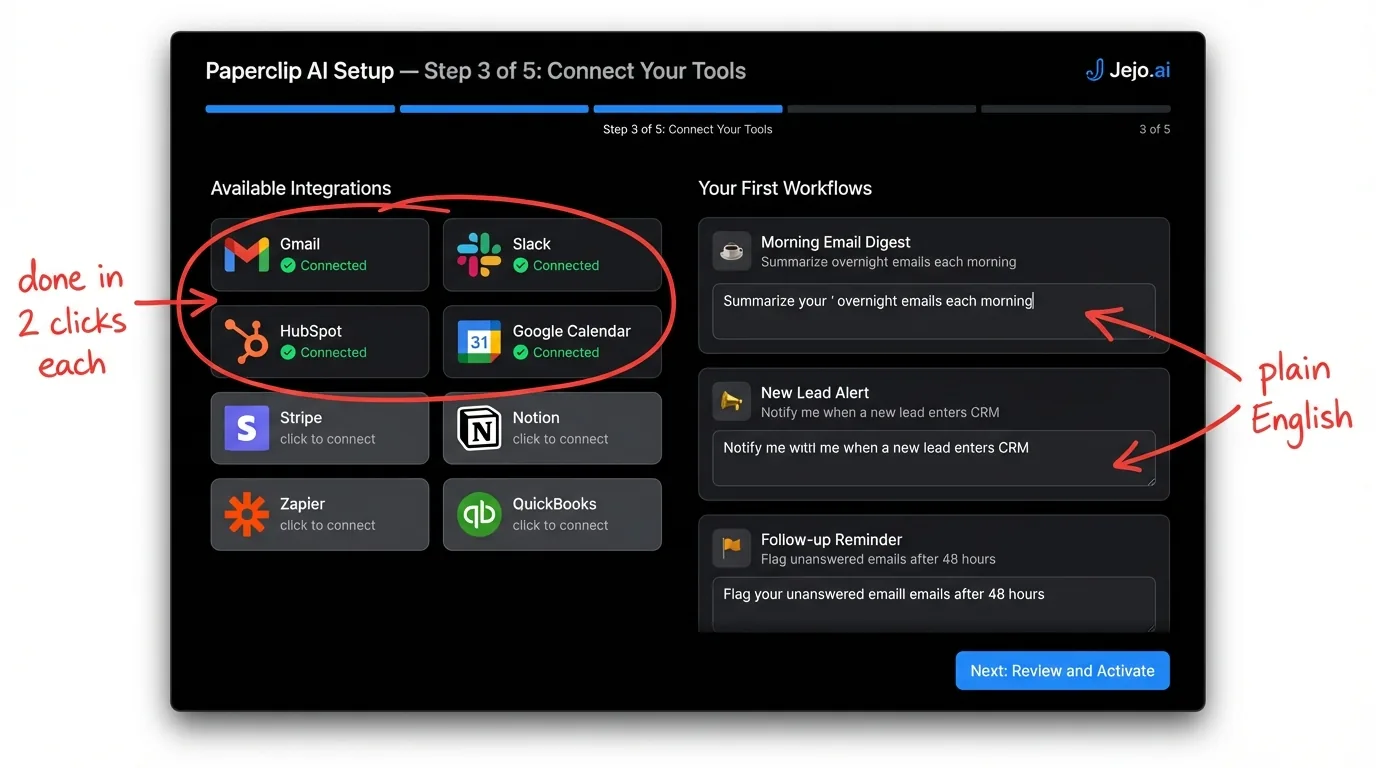
Step 1: Connect Your Tools (5 minutes)
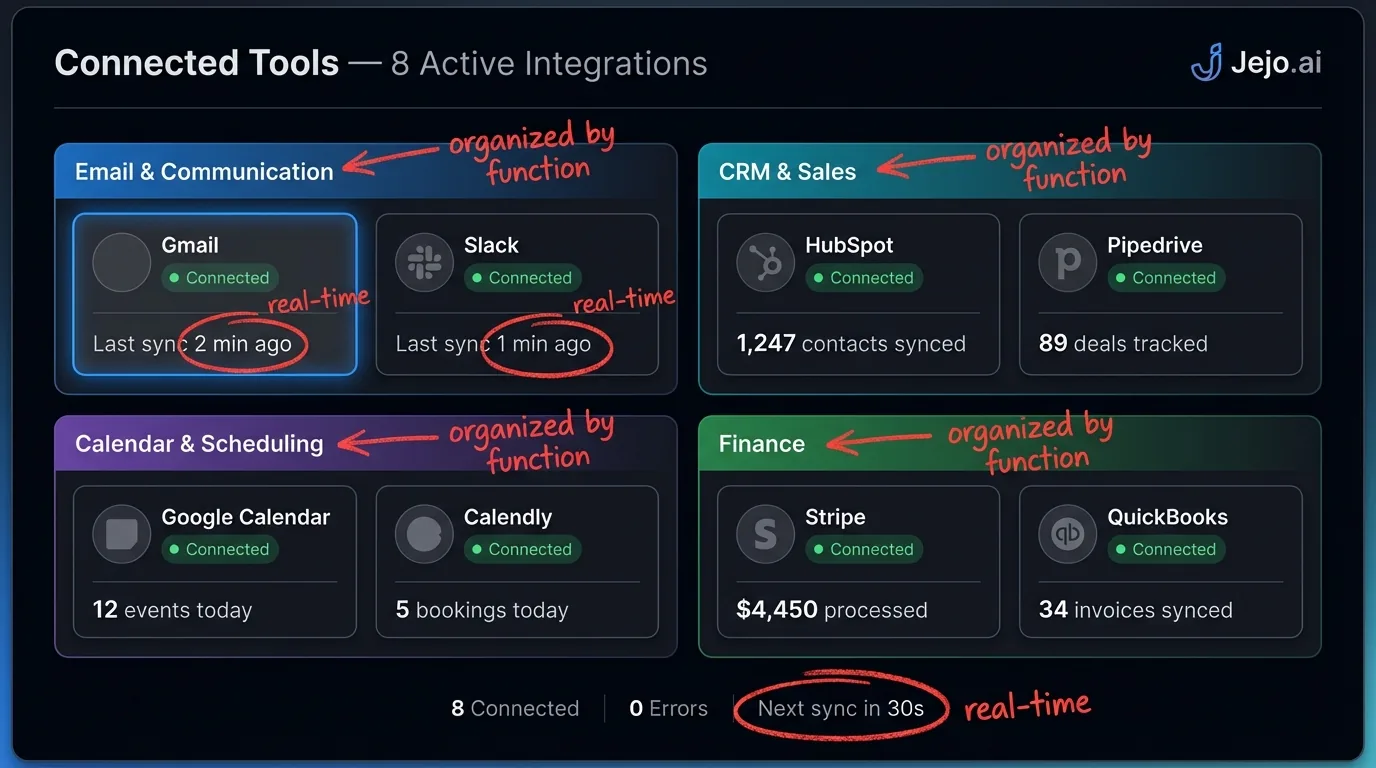
Paperclip integrates with the tools you already use. Gmail, Outlook, Google Calendar, HubSpot, Salesforce, Notion, Asana, Trello, Slack, Google Sheets, QuickBooks. The list covers most small business stacks.
You authorize each connection the same way you authorize any app: click connect, log in, grant permissions. No API keys. No webhooks. No developer portal.
The platform scans your connected tools and maps what data lives where. Your contacts in HubSpot. Your appointments in Google Calendar. Your tasks in Asana. This mapping takes 60-90 seconds and happens automatically.
Step 2: Describe Your Workflows (8 minutes)
This is where Paperclip AI setup differs from every other tool. You don't build workflows with drag-and-drop boxes. You describe them in plain language.
Examples that work:
- "When a new lead fills out the contact form, send them a welcome email within 5 minutes, add them to the CRM, and create a follow-up task for 3 days later."
- "Every morning at 7am, check for emails that arrived overnight and flag anything from existing clients as urgent."
- "When an invoice is 7 days overdue, send the first reminder. If still unpaid after 14 days, send a firmer follow-up and notify me."
The more specific the description, the better the execution. "Send a follow-up" is vague. "Send a follow-up email on Thursday morning if the proposal has been open for 72 hours and the client has not replied" gives Paperclip the exact conditions it needs to act. Vague inputs produce vague outputs. Specific inputs produce precise workflows.
You write 3-5 of these descriptions. Paperclip converts them into operational routines. It shows you what it understood and asks for confirmation before running anything.
Step 3: Set Guardrails (5 minutes)
Not every action should run on autopilot from day one. Guardrails tell Paperclip which decisions need your approval and which it can handle independently.
Common guardrails for week one:- Require approval before sending any email to a client (drop this after you trust the tone)
- Require approval before scheduling meetings (drop this after you verify calendar accuracy)
- Auto-approve CRM updates, data entry, and internal notifications (low risk from the start)
These guardrails are temporary. Most business owners remove 80% of them within 2 weeks once they see the agent performing reliably.
Step 4: Run the First Test Batch (8 minutes)
Before going live, Paperclip runs your workflows on real data in preview mode. You see what it would do without it actually doing anything.
It processes the last 48 hours of your email, CRM activity, and calendar. Then it shows you: "Here's what I would have done." Twelve emails it would have sent. Four CRM records it would have updated. Two follow-up tasks it would have created.
You review each one. Mark what looks right. Flag what needs adjustment. This calibration step is what separates a good first week from a frustrating one.
Step 5: Go Live (4 minutes)
Flip the switch. Paperclip starts operating on live data. The first actions go out with your approved guardrails in place.
Most business owners feel a specific moment during this step: the realization that someone (something) is now handling work that used to sit on their plate. That invoice reminder you kept forgetting? Sent. That lead who filled out a form at 11pm? Already received a response.
Total elapsed time: 30 minutes. Total technical skill required: zero.
Your First Week With Paperclip AI
Day one isn't where the value shows up. The first week is where it clicks.
Day 1-2: Observation mode. You will check Paperclip's actions 5-10 times. This is normal. You are building trust. Most business owners report that 85-90% of actions need zero correction on day one. Day 3-4: Confidence builds. You stop checking every action. You start checking twice a day. The daily summary email becomes your primary review point. You notice 45 minutes freed up that used to go to email triage. Day 5-7: The shift. You realize you haven't touched certain tasks all week. Invoice reminders went out. Leads got follow-ups. Your CRM is updated. The 2-4 hours per day you used to spend on operations dropped to 30-45 minutes of reviewing Paperclip's summary.By end of week one, most business owners have identified 3-5 more workflows to hand over. The agent's workload doubles by week two.
What If Something Goes Wrong?
Four common hiccups and how they resolve:
The tone is off on emails. Paperclip's initial email drafts are professional but generic. Paste in 3-5 examples of emails you have sent. The agent adopts your tone within one revision cycle. By week two, replies sound like you wrote them. It misclassifies a lead. Early on, the agent may flag a spam inquiry as a real lead or miss a warm prospect. Correct it once. Paperclip adjusts the classification criteria. The same mistake doesn't repeat. A workflow fires incorrectly. This usually means the natural language description was ambiguous. "Follow up with leads" could mean new leads, stale leads, or all leads. Be specific: "Follow up with leads who submitted a form in the last 7 days and haven't received a response." Precision in the description equals precision in the execution. A tool integration stops syncing. Sometimes an OAuth authorization expires or a tool updates its API and breaks the connection. Paperclip flags this in your daily summary rather than silently failing. The fix is always the same: go to Settings, find Integrations, locate the affected tool, and re-authorize the connection. Takes 2 minutes. It happens 2-3 times per year across a typical connected stack. No data is lost. The agent resumes immediately after reconnection.Connecting Specific Tool Stacks
Most business owners run one of three common stack types. Here's how each connects during Paperclip AI setup:
Marketing-heavy stack (agency, consultant):Gmail or Outlook plus HubSpot or Salesforce plus Google Calendar plus Notion or Asana plus Slack. All five connect natively. Paperclip reads lead data from HubSpot, schedules follow-ups in Calendar, drafts responses in Gmail, logs activity notes in Notion, and posts status updates to Slack. End-to-end coverage without switching tools.
E-commerce stack:Gmail plus Shopify plus Google Sheets plus Klaviyo plus Zendesk. Paperclip reads order data from Shopify, triggers email flows in Klaviyo, routes support tickets in Zendesk, and maintains inventory tracking in Sheets. Customer service response volume drops 60-70% in the first two weeks as the agent handles standard queries automatically. MIT Technology Review has covered how AI-driven triage is reshaping customer service operations at companies of all sizes.
Professional services stack (accountant, lawyer, financial advisor):Outlook plus Salesforce plus Google Calendar plus QuickBooks plus Asana. Paperclip automates client intake sequences, billing reminders, deadline tracking, and document request workflows. Invoice collection time drops from an average of 34 days to 11 days within 60 days of setup. For context, the SBA reports that cash flow problems from delayed receivables are among the leading causes of small business failure.
If your stack includes tools not on this list, check the integrations directory in your Paperclip dashboard. For anything not supported natively, the Business plan includes API access for custom connections.
DIY Setup vs Managed Setup
Two paths to get running:
| Factor | DIY setup | Managed setup (through Jejo.ai) |
|---|---|---|
| Time investment | 30 minutes setup + 1 week calibration | 15 minutes (we handle the rest) |
| Who configures workflows | You | We do, based on a 15-minute intake call |
| Ongoing management | You review and adjust | We monitor, optimize, and expand |
| Best for | Business owners who enjoy hands-on control | Business owners who want results, not another tool |
| Cost | Paperclip subscription only ($200-$750/mo) | Paperclip subscription + management fee |
Both paths get you to the same result. The managed route through Jejo.ai means you describe your business once, and we handle configuration, calibration, and ongoing optimization. You get the output without touching the platform.
For more on what Paperclip AI costs across both paths, see Paperclip AI pricing.
FAQ
How long does Paperclip AI setup really take?
Thirty minutes for the initial configuration. Connect tools (5 min), describe workflows (8 min), set guardrails (5 min), run test batch (8 min), go live (4 min). Full calibration where the agent matches your working style takes about one week. After that, it runs independently with minimal oversight.
Do I need any technical skills to set up Paperclip AI?
No. The entire Paperclip AI setup uses plain language descriptions, not code or drag-and-drop builders. If you can write "send a follow-up email when a lead has not replied in 3 days," you can set up the agent. No APIs, no webhooks, no developer required.
What tools does Paperclip AI connect to?
Gmail, Outlook, Google Calendar, HubSpot, Salesforce, Notion, Asana, Trello, Slack, Google Sheets, QuickBooks, and 50+ more through standard integrations. If your tool has an integration marketplace, Paperclip likely supports it. Missing a specific tool? Check their integrations page or ask us and we will confirm.
Can I start with one workflow and add more later?
Yes. Most business owners start with 3-5 workflows in week one and expand to 10-15 by month two. Paperclip doesn't charge per workflow. You can add, modify, or remove workflows at any time. Starting small is the recommended approach because it builds trust before you hand over higher-stakes operations.
What happens if Paperclip makes a mistake during setup?
The test batch in step 4 catches most issues before anything goes live. If something slips through, guardrails prevent high-stakes errors (the agent asks for your approval on flagged actions). Every action is logged, so you can review and correct. Corrections are permanent. The agent doesn't repeat the same mistake twice.
How do I know Paperclip is working correctly after setup?
Three places to check: the daily summary email (arrives each morning), the action log in your dashboard (every action recorded with a timestamp and outcome), and the weekly performance report (sent every Monday). Most business owners rely on the daily summary exclusively. It shows what Paperclip handled overnight, what it flagged for your attention, and a total count of completed tasks.
What is the paperclip AI problem?
Quick disambiguation: if you searched "paperclip AI problem," you may be thinking of the philosophical thought experiment about an AI that converts the universe into paperclips. That's unrelated to this product. Paperclip AI (this platform) is a business automation tool that handles email, scheduling, CRM, and follow-ups for small businesses. If you found this page looking for the AI safety concept, search for "paperclip maximizer" or "instrumental convergence." If you found it looking for business automation, you're in the right place.