Quick answer
- What this covers: The Paperclip AI dashboard puts your AI agent's activity, performance, and controls in one place.
- Who it’s for: People evaluating paperclip ai.
Most business software dashboards exist to impress during demos. They show charts nobody reads, metrics nobody acts on, and navigation menus that require a manual to understand. Research from Gartner on data and analytics governance finds that fewer than 50% of business users regularly act on the dashboards available to them.
The Paperclip AI dashboard is different. It is your operational command center. Every task your AI agent completed last night, every action pending your approval, every workflow running right now. It is all visible, filterable, and actionable from a single screen.
This guide walks through what the dashboard actually shows, which sections matter most for a small business owner, and how to get useful information out of it within the first five minutes of logging in.
What you need to know upfront:- The dashboard gives you a real-time view of your agent's activity and performance
- You can approve, reject, or modify pending actions without leaving the main screen
- Performance data updates every 15 minutes, not real-time, so don't expect second-by-second tracking
- The most important section for new users is the Action Log, not the overview metrics
What the Dashboard Shows You
Log into Paperclip AI and you land on the overview. Four numbers sit across the top: tasks completed today, tasks in queue, approval requests waiting, and a running total of hours saved this week.
Below that, three panels.
Left panel: Active Workflows. A list of every workflow currently running. Each row shows the workflow name, when it last ran, its success rate over the past 30 days, and its current status (active, paused, or pending setup). You can pause any workflow from this panel without touching its configuration. Center panel: Action Feed. A chronological list of everything your agent has done in the last 24 hours. New lead added to CRM. Follow-up email sent to J. Thompson. Invoice reminder triggered for Acme Co. Each entry is timestamped and links to the full action detail if you want to see exactly what was sent or updated. Right panel: Pending Approvals. Actions your agent flagged for human review before executing. You set the guardrails. These are the actions that hit a threshold you configured ("ask me before sending any email over $5,000 in value" or "check with me before removing a contact from the active pipeline").That is the whole screen. No fluff. No decorative graphs. Everything on this dashboard tells you something you can act on.
The Action Log: Where You Spend Most of Your Time
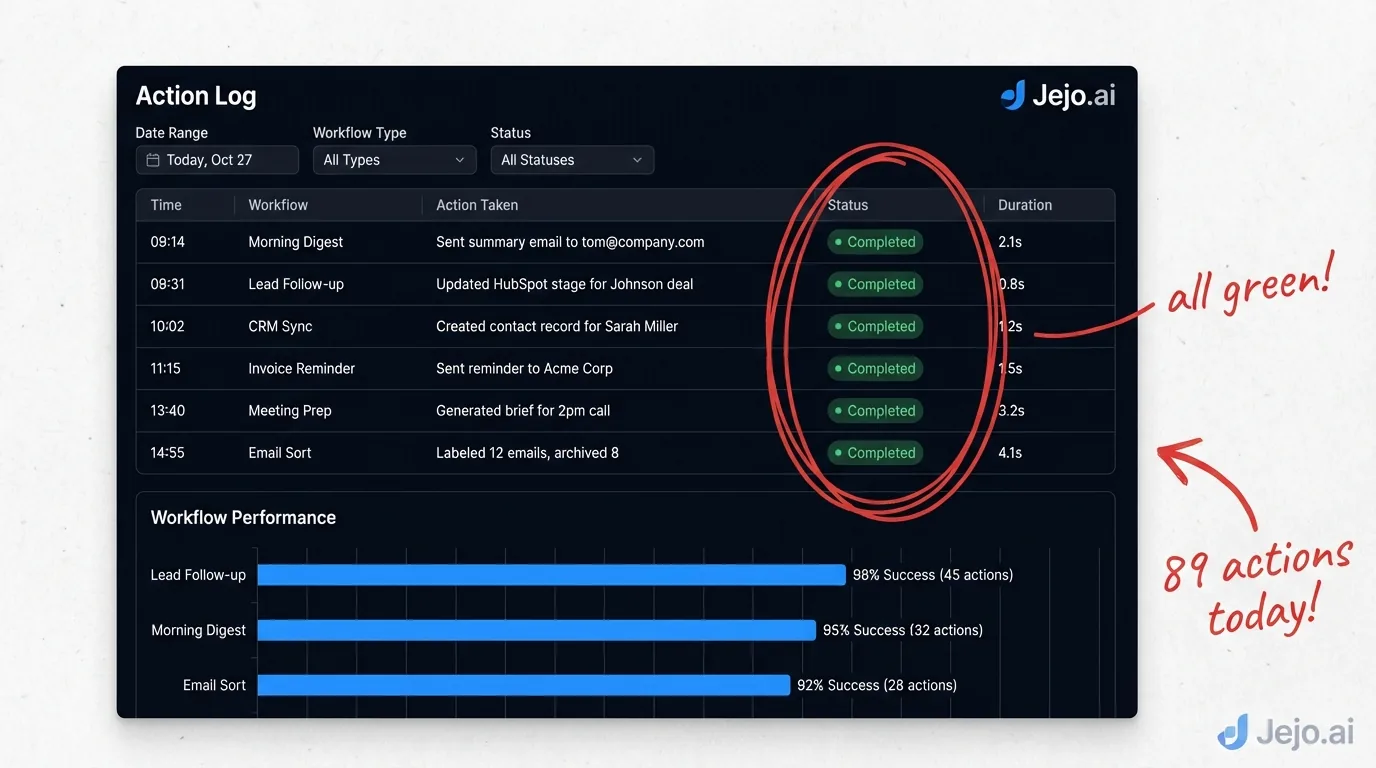
The Action Log is the most important part of the dashboard and the place most new users ignore. That is a mistake. Harvard Business Review research on algorithmic decision-making finds that humans trust automated systems more when they have visibility into the reasoning behind each decision.
Every action your agent takes gets logged here with full detail: what triggered the action, what the agent decided, what it actually did, and what the outcome was. Not a summary. The full chain.
Why does this matter? Because when something goes wrong, or when you want to understand why a client didn't receive a follow-up that should have fired, the Action Log tells you exactly what happened. No guessing. No back-and-forth with support.
The Action Log also shows you patterns over time.
If your agent is flagging 30% of lead qualification decisions for your approval, that means the workflow description is ambiguous. The agent is uncertain about enough edge cases that it is asking you to decide repeatedly. Spend 10 minutes sharpening the workflow description and that 30% drops to 5%.
If the agent is sending emails at 8pm and getting lower open rates than the 9am sends, the Action Log shows you. You update the send window. Response rates improve. You never would have noticed without the data.
The Action Log is searchable and filterable by workflow, date range, outcome (success, failure, flagged), and connected tool. For a business running 10+ workflows, the filter becomes essential. You want to see all actions related to your CRM updates from last Tuesday, not scroll through 200 entries.
Workflow Management: What You Can Change Without Touching Settings
The dashboard is not read-only. You can manage your workflows directly from the main screen without going into the configuration panel.
Pause a workflow. Click the toggle next to any active workflow. It stops immediately. No actions fire until you unpause. Use this when a client situation requires you to handle communications manually for a few days. Edit workflow descriptions. The description box for each workflow is editable right from the dashboard. You do not need to navigate to a separate settings area. Click the workflow name, update the plain-language description, and save. The agent picks up the new instructions on its next run cycle. Set or change guardrails. Each workflow has a guardrails field. You define what triggers a human approval request. "Ask me before sending to any contact tagged VIP." "Flag any action that involves a contract or payment." "Check with me before removing anyone from the onboarding sequence." You write this in plain language. The agent interprets and enforces it. View the workflow history. Every change you or the agent made to a workflow appears in a version history. If you updated a description two weeks ago and response rates dropped, you can see the before and after. You can revert to a previous version with one click.| Dashboard Feature | What You Can Do | Where to Find It |
|---|---|---|
| Active Workflows | Pause, edit descriptions, view history | Left panel, main screen |
| Action Log | Filter, search, review full action chains | Center panel, expandable |
| Pending Approvals | Approve, reject, modify before executing | Right panel, main screen |
| Performance Metrics | Success rates, hours saved, response data | Overview at top, updates every 15min |
| Connected Tools | Check connection status, reconnect if broken | Settings > Integrations |
| Guardrails Manager | Set approval triggers by workflow or globally | Workflow detail > Guardrails |
Performance Metrics: What to Track and What to Ignore
The dashboard has a metrics section. Most of the numbers there are vanity. A few are genuinely useful. Here is the distinction.
Track these: Action success rate by workflow. This tells you how often a workflow completes without errors or fallbacks. Below 90% means something needs attention. Usually a changed API in a connected tool or a workflow description that produces inconsistent outputs. Approval request rate. How often your agent asks for human input. High rates mean ambiguous workflow descriptions. Declining rates over time mean the agent has learned your patterns and needs less guidance. An approval rate below 5% by month two is a healthy signal. Response rate on outbound emails. If your agent sends emails and you track replies, this metric shows whether the emails are working. A drop in response rate is usually a signal to update the email template or the send timing, not a sign the agent is broken. Campaign Monitor's email benchmarks report average small business email response rates of 20-25%, with follow-up sequences consistently outperforming cold outreach. Ignore these: Raw task count. More tasks completed is not necessarily better. Completing 100 tasks that don't matter is worse than completing 20 tasks that do. Focus on workflow-level success rates instead. "Hours saved" estimates. These are rough calculations based on average task duration. They are useful for approximate ROI validation but not precise enough to build a business case around. Real-time activity indicator. The dashboard shows a dot that pulses when your agent is active. Watching it is satisfying. It tells you nothing actionable. Ignore it.Notifications and Alerts: What Gets Pushed to You
You should not have to log into the dashboard to know when something important happens. Paperclip's notification system pushes alerts to your email, Slack, or SMS when things need your attention.
Default alerts:
- Approval request waiting (delivered within 2 minutes of the flag)
- Workflow failure (a workflow that stopped mid-execution due to an error)
- Connected tool disconnected (your Gmail, HubSpot, or other integration dropped)
- Daily summary (delivered at 7am, configurable)
You can add custom alerts. "Notify me when a new lead comes in tagged as 'enterprise'." "Alert me when the agent sends a payment reminder to a client I have tagged as sensitive." "Push a message to Slack any time a new contract workflow completes."
Ideally, you never log in just to check if things are running. The dashboard is for when you want to go deeper: audit an action, improve a workflow, or understand a trend. Day-to-day, the notifications handle the awareness layer.
Multi-Agent View: Managing More Than One Agent
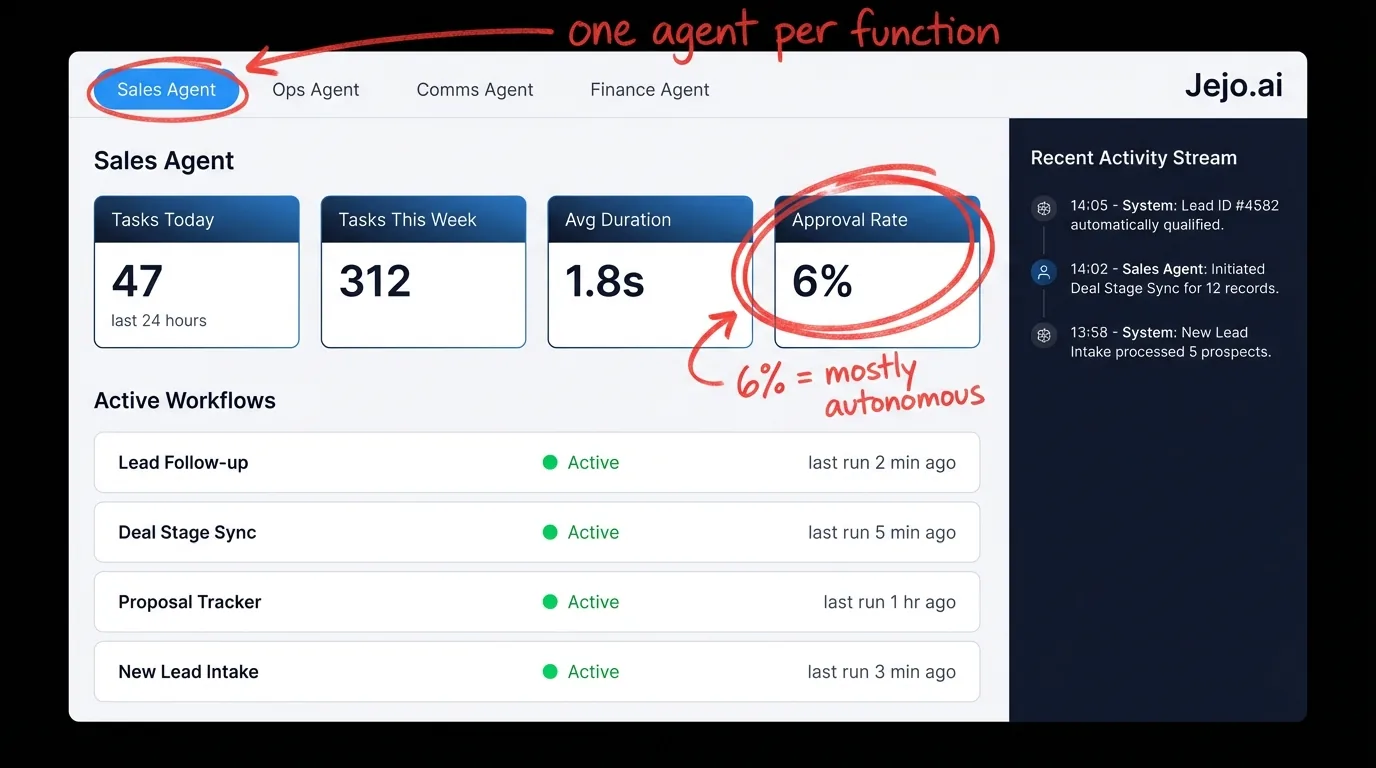
If your subscription covers multiple agents (some Paperclip tiers support this), the dashboard shows all agents in one view. Each agent appears as a tab across the top of the screen. You switch between them instantly.
Across agents, you can see comparative performance. Agent A (handling sales follow-up) processed 47 tasks yesterday. Agent B (handling client onboarding) processed 23. If Agent B's numbers are consistently lower, either the workflow volume is genuinely lower or something is blocking it.
The multi-agent view also shows you resource allocation. Some Paperclip plans have limits on total actions per month across all agents. The dashboard shows you where you are against that limit in real time so you can prioritize which agents run the most complex workflows.
First 10 Minutes in the Dashboard: What to Do
You just set up Paperclip AI. You are logged in for the first time. Here is the right order:
- Check connected tools status. Settings > Integrations. Every tool should show green. If anything shows disconnected, fix it before doing anything else. A workflow that cannot access your CRM cannot do its job.
- Review the Action Log from the setup period. Even if you set up the agent 24 hours ago, there will be activity. Scan for anything unexpected.
- Check Pending Approvals. Clear the queue before starting your day. Approving pending actions first means your agent can continue its workflows without stalling.
- Open the Active Workflows panel and verify your three starting workflows are active. Status should show green for each one.
- Set your notification preferences. Go to Settings > Notifications. Turn on daily summary, approval alerts, and workflow failures. Everything else is optional.
That is it. Ten minutes. From that point forward, your daily relationship with the dashboard is: check notifications, review the morning summary, handle pending approvals. Most days that takes under 5 minutes.
Common Dashboard Questions
Can I see what email the agent actually sent?Yes. Click any email action in the Action Log and the full email text appears in the detail view. Every outbound email, every CRM note, every task created. Full text, every time.
Can I stop the agent from doing something it is in the middle of?Yes. The pause button on any workflow stops it immediately. If the agent is mid-execution on a multi-step workflow, it stops after the current step completes. It does not cancel steps already in motion.
What happens if a connected tool goes down?The workflow fails gracefully. The agent logs the failure, retries three times over 30 minutes, then sends you an alert if it cannot complete. Nothing fires silently and fails without you knowing.
How far back does the Action Log go?Standard plans store 90 days of history. Business plans store 12 months. If you need to audit something from eight months ago, you need the Business tier.
Can someone else on my team access the dashboard?Yes. Settings > Team lets you add team members with different permission levels. View-only, workflow manager, or full admin. You control who can approve actions, edit workflows, or modify integrations.
FAQ
What is the Paperclip AI dashboard?
The Paperclip AI dashboard is the central control interface for your AI agent. It shows every task your agent completed, every action pending your approval, your connected tools status, and workflow performance data. You manage all active workflows from the dashboard without needing to go into configuration settings.
How often does the dashboard update?
Performance metrics refresh every 15 minutes. The Action Feed and Pending Approvals panel update within seconds of the agent taking an action. You see near-real-time activity without polling or refreshing manually.
Can I manage multiple agents from one dashboard?
Yes, on multi-agent plans. Each agent appears as a tab on the main screen. You switch between them and see comparative performance across all running agents. This is useful when you have one agent handling sales workflows and another handling client delivery.
What should I check in the dashboard every day?
Three things: Pending Approvals (clear these first so your agent is not stalled), the overnight Action Log summary (scan for anything unexpected), and the notification inbox (flag anything that needs a response). Most days this takes under 5 minutes.
How do I know if my agent is working correctly?
The Action Log is the definitive source. If workflows are completing with 90%+ success rates and the approval request rate is declining over time, the agent is operating well. For context on what good performance looks like across different business types, see the full Paperclip AI review.
How to use Paperclip AI?
Connect your tools from the Integrations panel, create your first workflow using plain-language descriptions in the Workflow Builder, set guardrails for anything sensitive, and run the test batch before going live. Daily use is light: clear Pending Approvals, scan the overnight Action Log, and let the agent run. Most of the active work happens in weeks 1 and 2 while you correct outputs and train the agent to your style. See the Paperclip AI setup guide for the full walkthrough.
For more on what Paperclip AI can do for your business, start with what is Paperclip AI or compare it against alternatives before committing to a plan.